Memorystore for Redis
You can deploy a Memorystore Redis instance with Runway to a single region or multiple regions.
Single-region Redis instance
Section titled “Single-region Redis instance”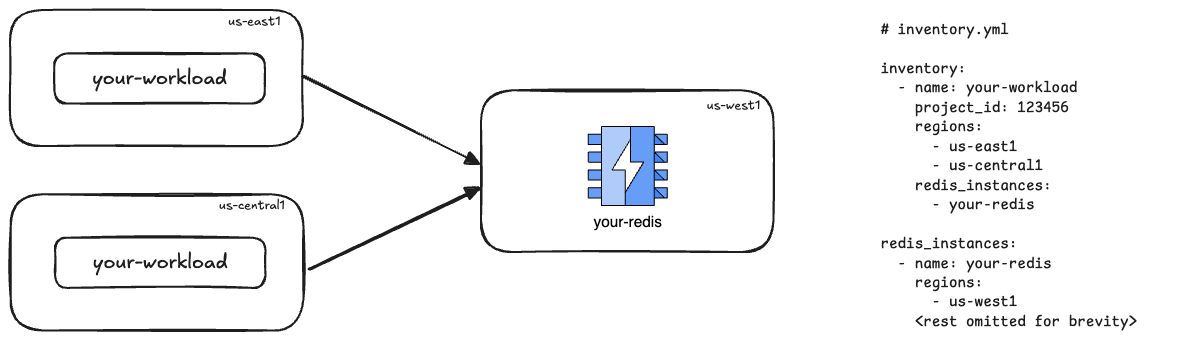
This is ideal when you want to share the data on the Redis instance across your workload containers, and your workload is deployed to the same region as the Redis instance OR you are not too concerned about the network latency penalty from/to Redis from your multi-region workload.
Multi-region Redis instance
Section titled “Multi-region Redis instance”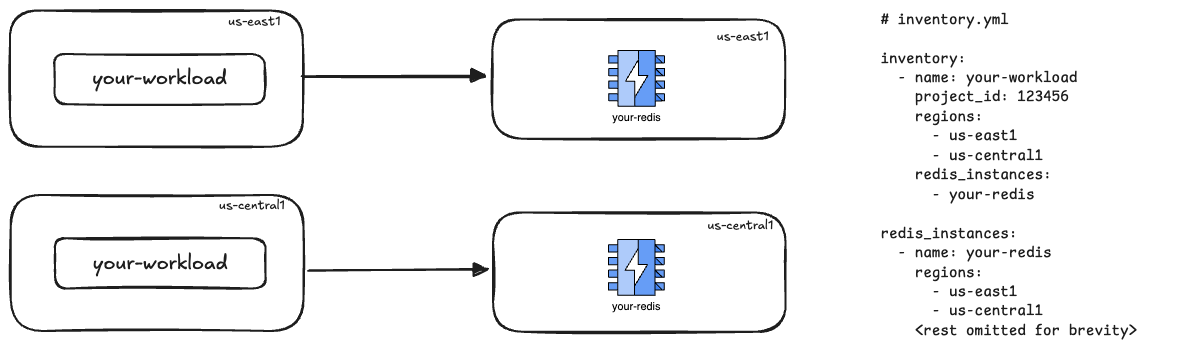
In this configuration, your workload must be deployed to the same regions as the linked Redis instance. Each Redis instance is isolated so no data is shared between Redis instances.
Security
Section titled “Security”Firewall rules
Section titled “Firewall rules”Runway deploys VPC firewall rules to restrict network traffic between workloads and Redis instances. This means that workload A cannot talk to the Redis instance linked to workload B.
No in-transit encryption
Section titled “No in-transit encryption”Since traffic between workloads and Redis is private (VPC + VPC peering), and we have VPC firewall rules in place to limit cross-workload Redis traffic, Runway disables in-transit encryption as it would add relatively little value and negatively affect the user experience plus added maintenance due to certificate management.
Authentication
Section titled “Authentication”Clients must authenticate in order to connect. The auth string is provided as an environment variable to your workloads.
Using Memorystore Redis
Section titled “Using Memorystore Redis”Add Redis instance
Section titled “Add Redis instance”In the provisioner repository, you will need to add your new Redis instance to the config/runtimes/cloud-run/memorystore.yml file using a stanza like the following:
- name: your-redis identifier: CACHE regions: - us-east1 - us-west1 instance_type: CACHE provider: GCP engine: REDIS tier: BASIC memory_size_gb: 1See the schema documentation for more information on all the available options.
Connect workload(s) to the Redis instance
Section titled “Connect workload(s) to the Redis instance”Connecting your workload(s) to the Redis instance is just a matter of
referencing the name of your Redis instance under redis_instances for your
workload(s). For example:
- runway_service_id: your-workload project_id: 123456 regions: - us-east1 - us-west1 redis_instances: - your-redis # must match Redis instance name defined in the previous stepRegions
Section titled “Regions”Important points to consider when configuring the regions:
-
If your workload(s) is/are deployed to multiple regions, you need to ensure that the
regionsfor your workload(s) matches the regions for the Redis instance. -
Ensure the configured
regionsare defined in thenetworkssection of the file. Failure to do will result in an inventory validation error when you file an MR due to the missing networking configuration for the region(s).
Enable VPC access (Cloud Run)
Section titled “Enable VPC access (Cloud Run)”The above steps will deploy the Redis instance, configure the VPC firewall rules and automatically set the secrets so that your workload(s) have the endpoint, auth string, etc. defined on the next deploy. No further action is required for setting and accessing secrets. However, the Cloud Run workload is not wired up yet to send internal traffic via the VPC so this is the last piece of the puzzle.
You need to edit the runway.yml file for your workload(s) and set the
following:
apiVersion: runway/v1kind: RunwayServicemetadata: <omitted for brevity>spec: <omitted for brevity> regions: - us-east1 - us-west1 vpc_access: enabled: trueThis will configure your workload to have a network interface on the
runway-<region> subnetwork within the runway-<environment> VPC.
Connecting to Redis
Section titled “Connecting to Redis”Once the above change is deployed to your workload(s), you should be ready to go!
Your workload(s) should now have access to several useful environment variables including:
RUNWAY_REDIS_HOST_<identifier>RUNWAY_REDIS_PORT_<identifier>RUNWAY_REDIS_PASSWORD_<identifier>
In the example above, the identifier is CACHE so you should be able to connect
to Redis at ${RUNWAY_REDIS_HOST_CACHE}:${RUNWAY_REDIS_PORT_CACHE}
authenticating with the password ${RUNWAY_REDIS_PASSWORD_CACHE}.
Limitations
Section titled “Limitations”- Only Memorystore for Redis standalone is supported. Other variants (cluster, valkey, memcached, etc) are not supported.
- Persistence is not supported (see non-goals in the blueprint).
Observability
Section titled “Observability”To create a Runbook service for the Redis instance for monitoring, alerting and capacity planning:
- Add an entry into the service-catalog.yml file (like this one).
- Create a service definition file under the
metrics-catalog/servicesfolder. You can refer to the metrics-catalog service definition of the runway-redis-example. - Run
make generateto generate mimir recording rules, alerts and dashboards. - File an MR with your changes to the
runbooksrepository
Rotating the Redis password
Section titled “Rotating the Redis password”When a Memorystore for Redis instance is created with authentication enabled, Google Cloud automatically generates a random password for the instance. This password cannot be manually set or directly rotated. The only way to trigger generation of a new password is to disable authentication on the instance and then re-enable it, at which point a new random password is issued.
You need to carry out the steps below for each environment that you are rotating the password for.
-
Create an empty MR in provisioner
Terminal window git checkout -b rotate-redis-password-<workload>-<env>git commit --allow-empty -m "Rotate Redis password for <instance> in <environment>"git pushGo ahead and create an MR from this empty commit, and get it approved. Best to do this now so you are not waiting around for approvals once you have rotated the password potentially causing downtime to your service.
-
Disable auth on the target Redis instance
Terminal window gcloud --project gitlab-runway-<environment> redis instances update <instance name> \--region <region> \--no-enable-auth -
Re-enable authentication
By re-enabling authentication, Google will issue a new password:
Terminal window gcloud --project gitlab-runway-<environment> redis instances update <instance name> \--region <region> \--enable-auth -
Trigger Terraform plan via atlantis
In the MR that you created in step 1, drop a comment with the following atlantis command:
atlantis plan -p provisioner -- -target='module.gcp_cloud_run.vault_kv_secret_v2.runway_redis_secrets' -refresh=trueCheck the Terraform plan from atlantis and you should see a message similar to the following:
Note: Objects have changed outside of Terraform Plan: 0 to add, # to change, 0 to destroy.
Ensure the objects that will be updated correspond to the workload in question.
-
Apply Terraform changes
To apply the Terraform changes, the MR will need to be approved.
Once approved, issue the following comment:
atlantis applyOnce applied, your new password for Redis should be in Vault, however it has not been pushed to Google Secrets Manager yet. Your application is still referencing the old password.
-
Re-run deploy job
You now need to re-run your latest deploy job for your workload in the right environment:
-
Go to https://gitlab.com/gitlab-com/gl-infra/platform/runway/deployments
-
Search for your deployment project (i.e., your Runway service ID)
-
Click on Operate > Environments
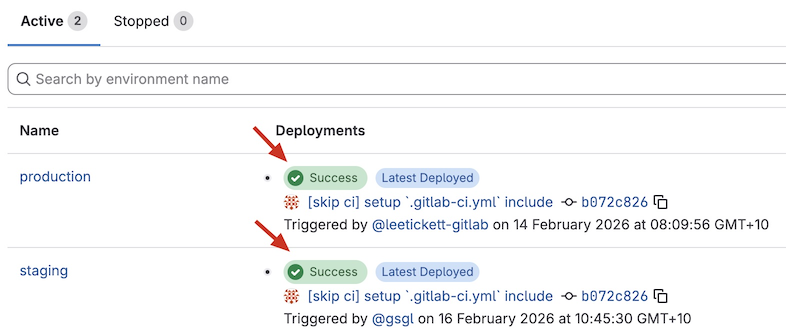
You should see something similar to the following:
-
Click on the Success link corresponding to the environment you are rotating the password for.
-
Click on the link located on the right hand side below Pipeline.
-
Click on the Deploy [environment] job in the deploy stage.
-
On the top right corner, click on the 🔄 (Retry) link.
This should run relatively quickly and push the updated secret to Google Secrets Manager in addition to pushing a new Cloud Run revision with the updated secret reference.
-
-
Done!
Feedback
Section titled “Feedback”We welcome your feedback!
Tell us what works well, what could be improved, what features are missing for your use case(s), etc. Thank you!